Table of Contents
How to reactivate my campaign?
.

Table of Contents
Reactivate Your Campaign
adnomaly acts as a safety check for your campaign setups, similar to two-factor authentication. If you receive an alert and confirm the campaign settings are correct, you must approve them to reactivate the campaign. Here's how to do it.
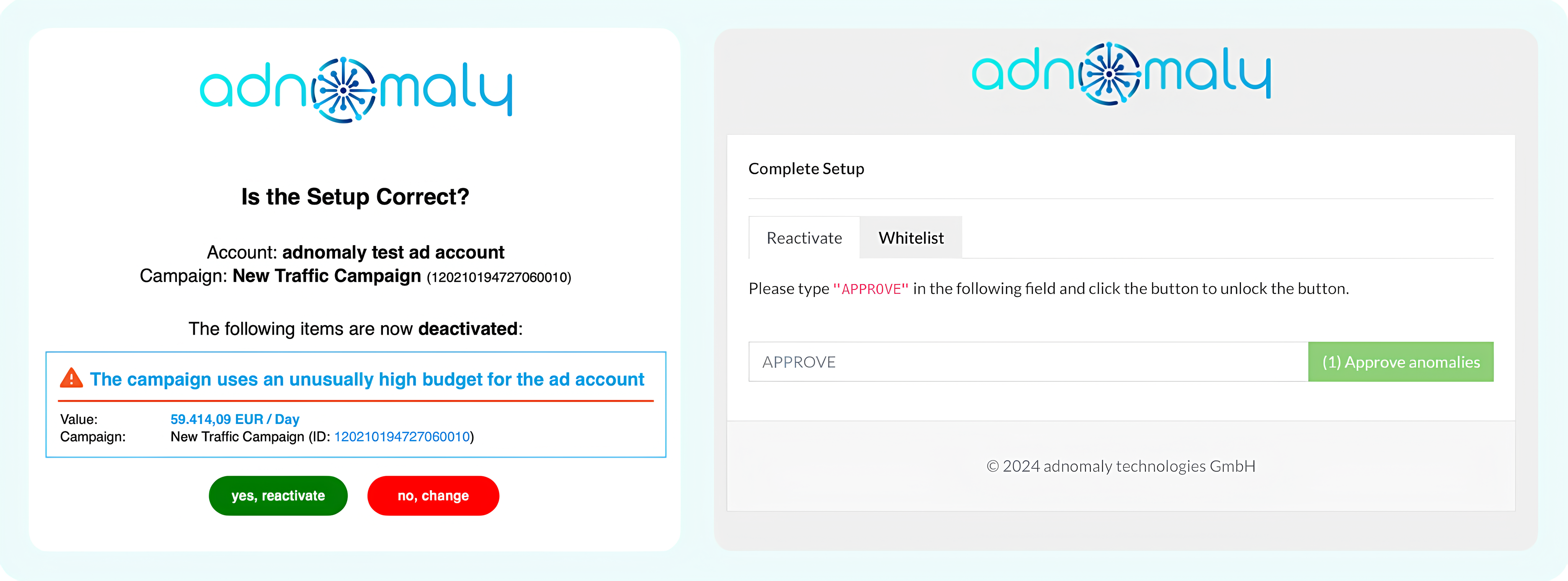
- Reactivating through e-mail
- Open the email or alert you received that paused your campaign.
- Click the “Yes, reactivate” button. This will take you to the Complete Setup page.
- On the page, type “APPROVE” in the text box and click the “Approve Anomalies” button.
-> Your campaign will now be automatically reactivated via the API.
- Accessing alerts on the Operations Center
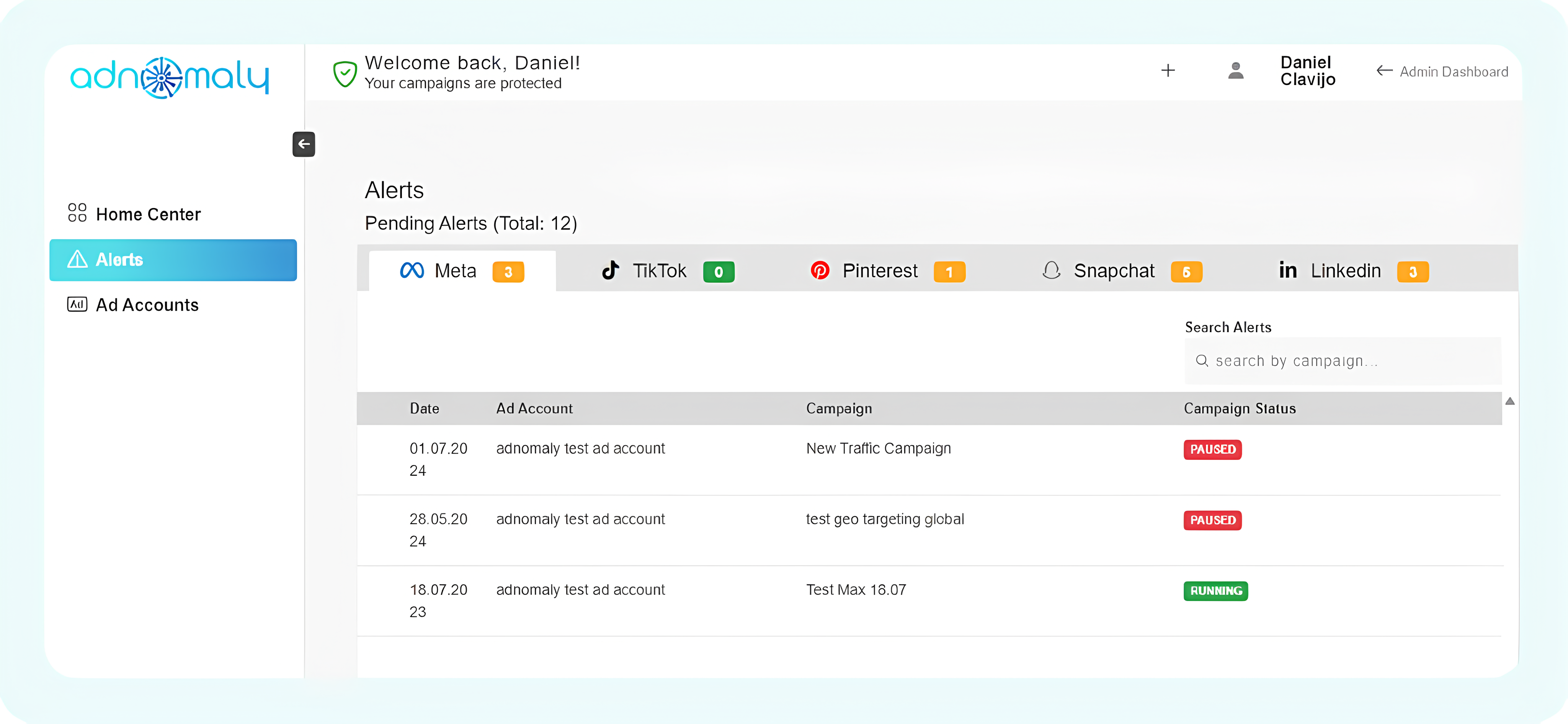
If you missed an alert in your mailbox or prefer to approve alerts directly in the adnomaly Operations Center, you can easily do so.
- Go to the Home Page in the Operations Center. On the left side, click "Alerts" to open the Alerts Page.
- Find the alert for your campaign and click on it.
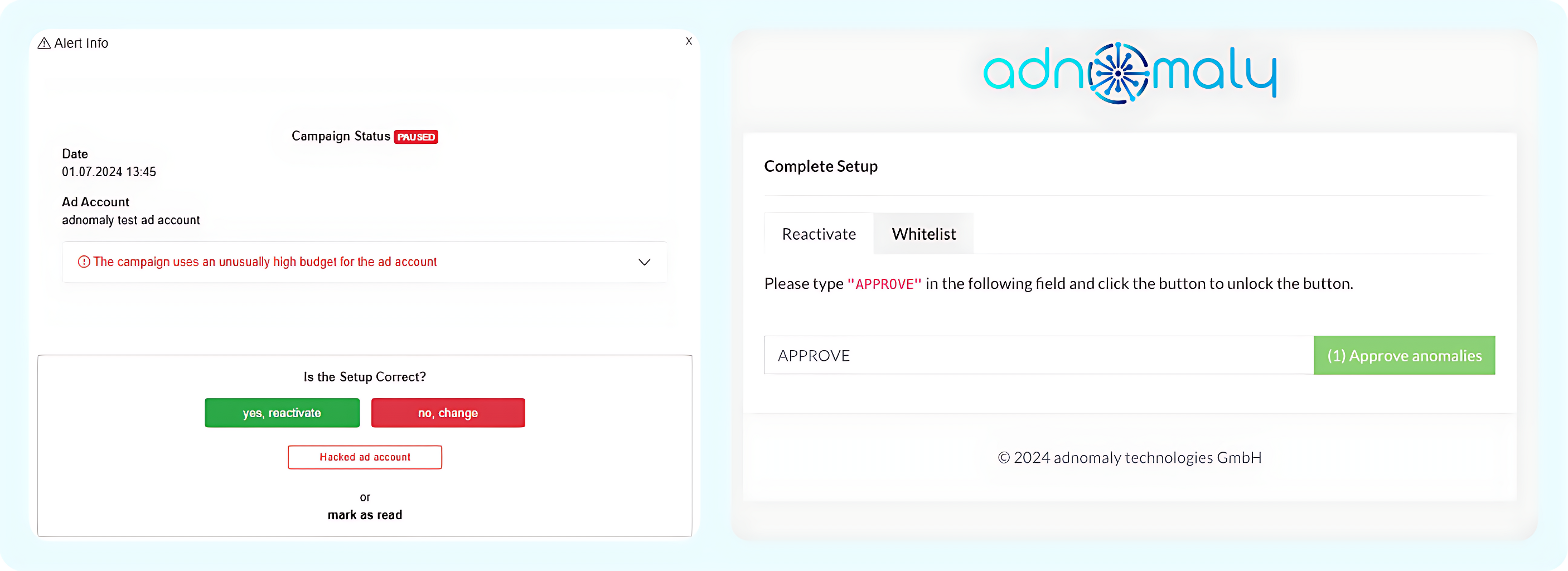
Now, the process works the same as before:
1. Click the “Yes, Reactivate” button.
2. You’ll be redirected to the Complete Setup page to approve the anomalies. Once approved, your campaign will be reactivated via the API within 2 minutes.
You’re all set! Now, your campaign will be back up and running smoothly.
How did we do?
When does adnomaly send alerts?
Why is my campaign deactivated?