Meta
In this article, we will guide you through the steps to connect adnomaly to your Meta Business Manager. To enable adnomaly on your Meta account, you need to add adnomaly as a business partner, accept…

Updated
by Binnaz Cemre Janicke
In this article, we will guide you through the steps to connect adnomaly to your Meta Business Manager.
To enable adnomaly on your Meta account, you need to add adnomaly as a business partner, accept the app request, create a system user, assign proper permissions, and generate an access token. This setup lets adnomaly securely monitor your campaign performance.
Step-by-Step Instructions
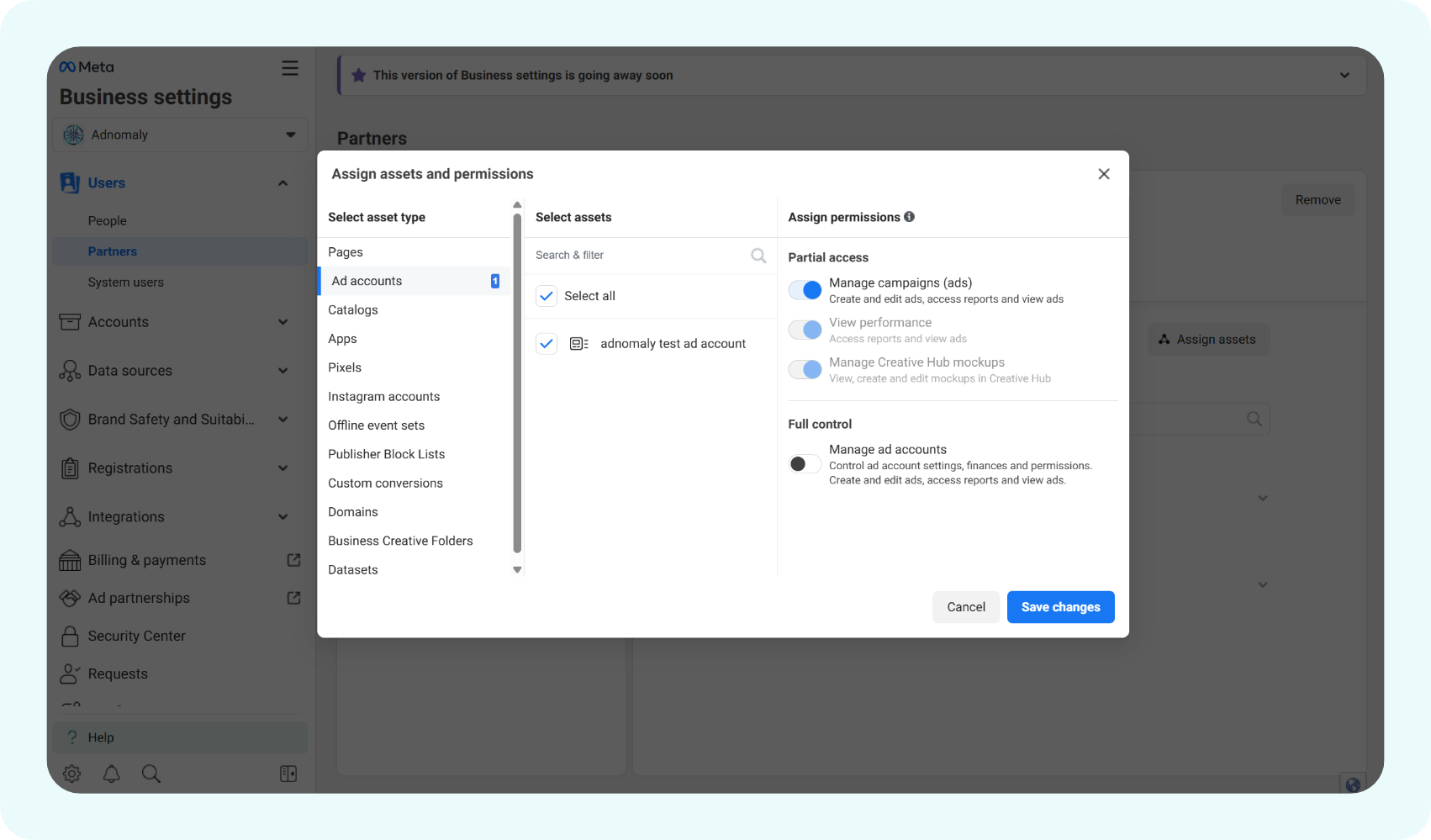
- In your Meta Business Manager, add adnomaly (ID: 207019844434969) as a partner.

- Guarantee partial access by enabling the 'Manage campaign (ads)' permission and saving the changes.
- After adnomaly approves your business manager partner request, we will share our adnomaly app with your business manager.
Important: Accept this app request before moving to the next step.
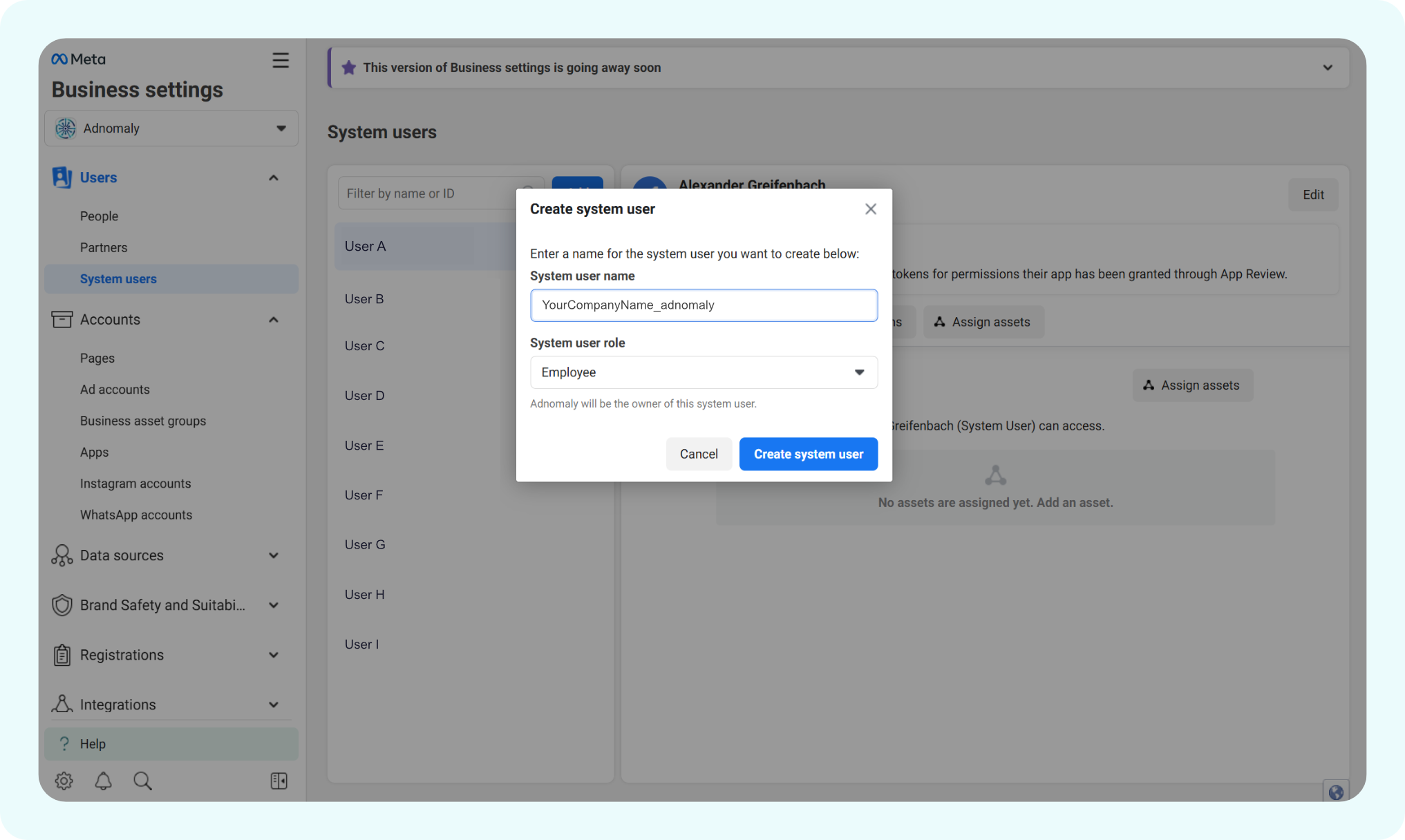
- Go to the Meta app menu and find adnomaly. Add a new system user as YourCompanyName_adnomaly and assign the system user role as Employee. Click Create System User.
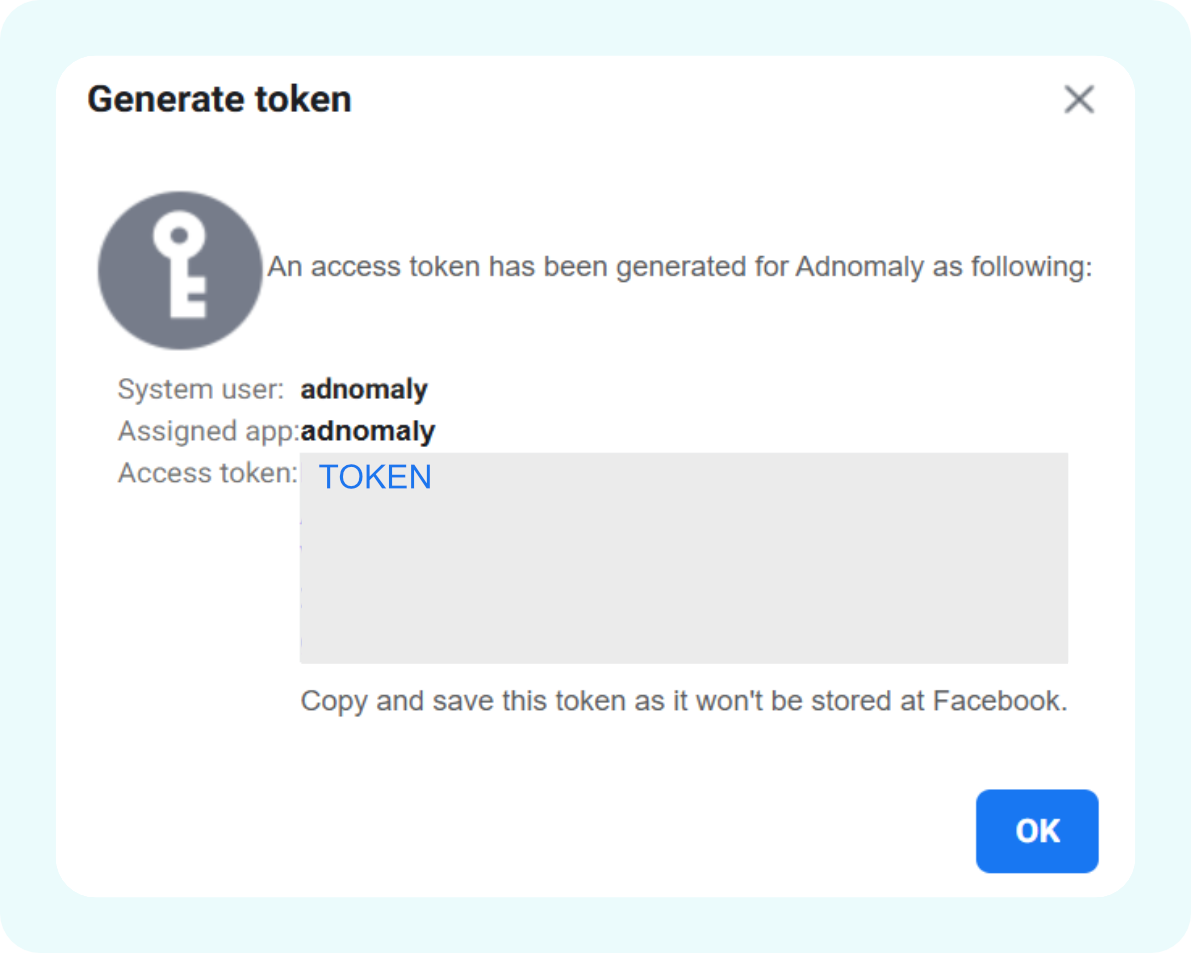
- Select the new system user you just created and click Generate New Token. In the dropdown menu, select the adnomaly app, set the following options:
- Token expiration: Never
- Permissions: ads_read, ads_management, pages_manage_ads
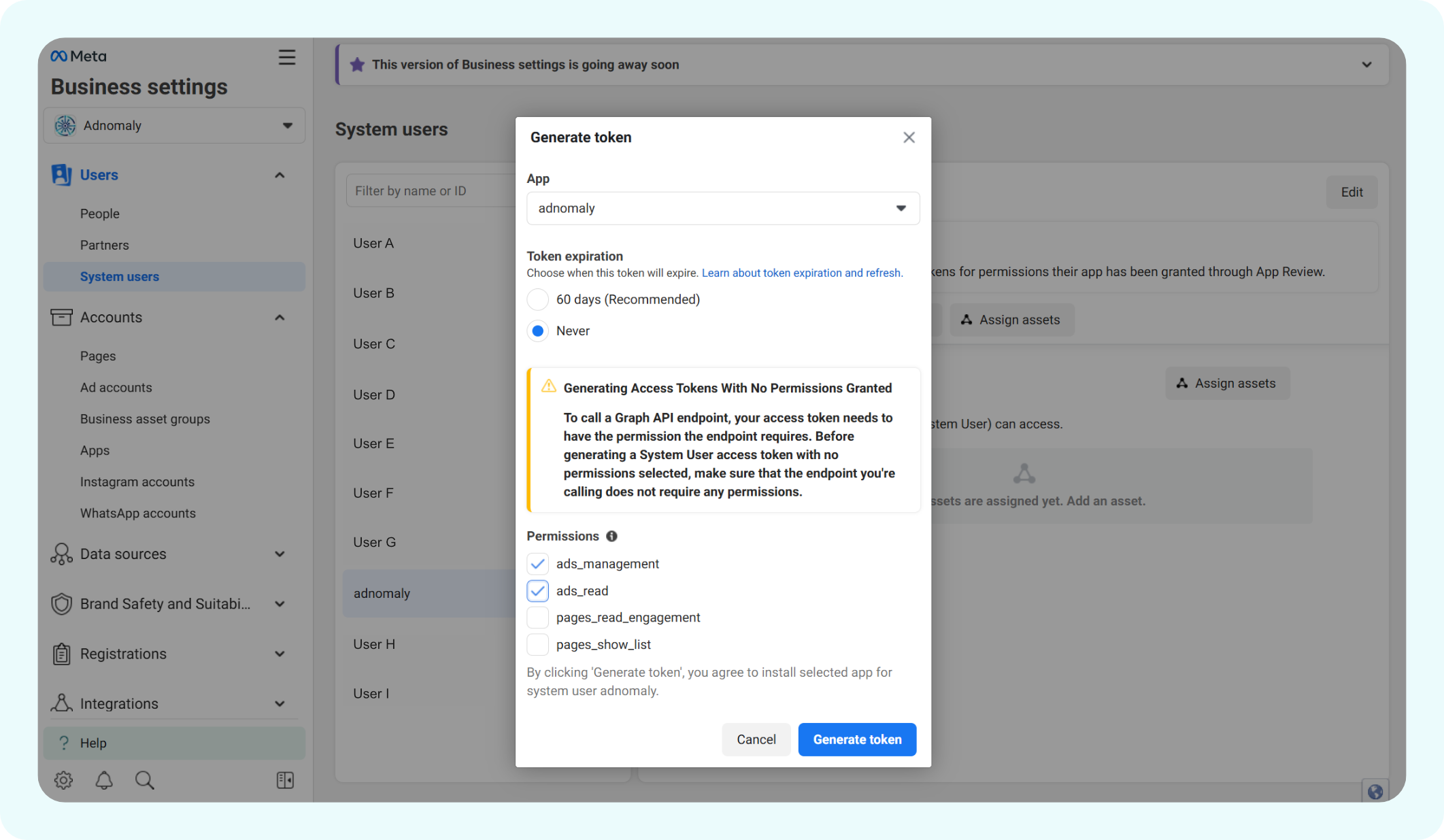
- After clicking Generate New Token, you may be prompted to enter a two-factor authentication code. Once the token is generated, copy the access token code and send this token securely to your adnomaly contact to complete the setup.
- Assign campaign-related assets to both the system user and the adnomaly app. Select the permission: Manage Campaign.
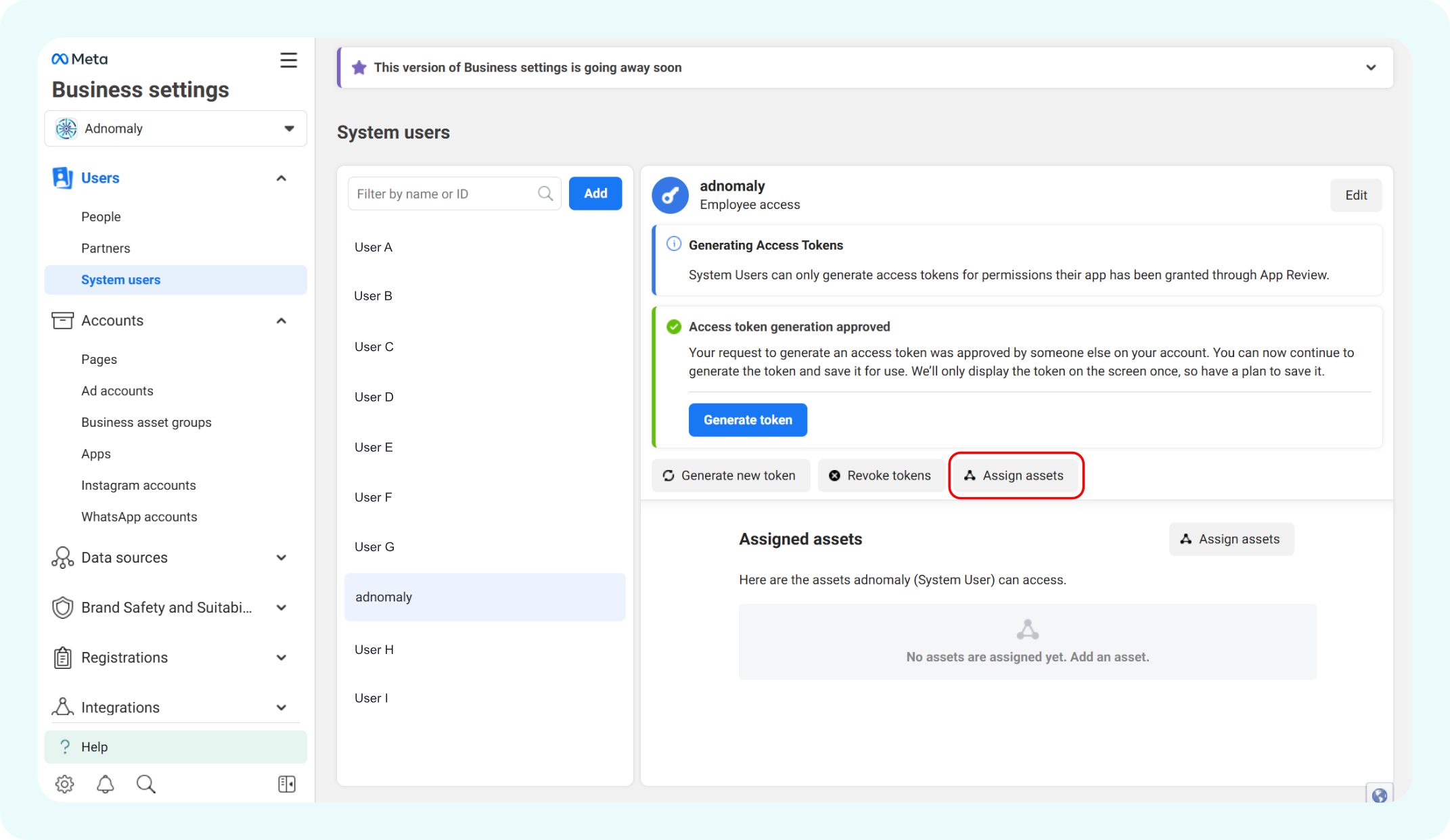
Once you've completed the steps, please notify your adnomaly representative. There are a few manual steps to finalize the connection within our system.
You're all set! Now, adnomaly is successfully connected to your Meta Business Manager.
How did we do?
TikTok